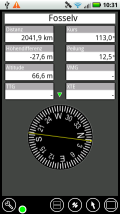
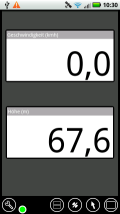
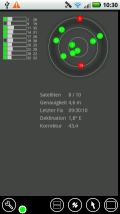
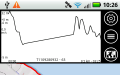
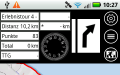
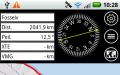
AFTrack is the display for your GPS and brings the world of
hiking, biking, sailing, geocaching and more to your phone. The program
handles tracking with smart and fixed logging features. It sends
reports online or via SMS. It receives SMS position messages and shows
it as way points. It exports tracks and way points, uses maps online
and offline and much more.
Features
GPS and other input
- different gps sources: internal gps, internal with NMEA,
bluetooth gps direct, USB gps, online gps over Wifi/3G, NMEA file
- read NMEA, GpsD json, Signal K json, gdl90 protocol
- work as gps daemon (nmea or json, port 2947 only)
- share position (replaces standard gps provider)
- connection with AIS server (NMEA format)
- altitude correction (automatic or manual) and Kalman filter
- pressure usable for altitude (if available)
- pressure start altitude editable
- automatic correction over weather server (needs net connection)
- compute current from COG and CTW
- Mixed mode - read external NMEA but use internal position data
- log all NMEA sentences or selected
Tracking
- collect track data
- show routes or tracks in up/down hill colors
- add photos to a track
- export tracks to GPX, KML, OVL, IGC format and send or upload it
- import route data - GPX, TCX or KML format
- import, export way points - GPX or KML format
- import areas from KML format
- use a kml.txt format to send exports direct via bluetooth
- design a route or an area on the map
- design a route using BRouter offline data, includes inland waterway routing
- design a route using wind information and polar data
- edit a route or an area on the map
- merge some routes
- copy way points to route
- export routes to SIGMA/VDO bike computer
- get new way point from bearing, map or position
- add predefined way point collection to map
- revers routes
- Routing in a corridor
- off road routing along the line
- BRouter: resample a route
- BRouter: combinate BRouter with direct routing
- BRouter: a special waterway, canoe internal router uses bridge heights, depth and so on for routing
Maps
- online maps - pool editable, tile or WMS based
- offline maps - OSZ format build by MobileAtlasCreator
- offline maps - SQLite formats mbtiles and sqlitedb build by MobileAtlasCreator
and/or Maperitive
- offline maps - BSB3 format for marine navigation
- offline maps - NV digital for marine navigation
- offline maps - mapsforge vector format - with extra xml
layouts, hill shading, language support usable (V5)
- offline maps - mph/mpr format
- offline maps - GeoTiff (partly)
- use offline maps from jpg, png or bmp files
- use offline maps with calibration file map, gmi, kml, kal, cal, pwm,
tfw or jpr format
- make own calibration for a bitmap
- seamless maps display when using Mapforge, OSZ or SQLite tile container
- map selector to have quick access to available offline maps
- map scan for a defined folder and sub folder
- map overlays - online pool editable
- map offline overlays - in mbtiles 'overlay' format
- OpenSeaMap downloader
- scaling charts 1x/2x/4x
View
- wind indicator for the map or position center
- display depth - if available
- display AIS information, also AIS groups - if available
- display AIS list in profile view - if available
- display ADS-B (air plane) information - if available
- vario display
- vario sound
- alarm on reached POIs
- set anchor alarm for the current position
- set anchor alarm for a way point that receives positions from a gps
tracker
- save and restore settings
- send waypoint or anchor alarm to Android Wear
Online
- Online position sending for live tracking
- Online receive way point positions from a GpsGate server
- convert received way point history to track
- getting way point positions from a GpsGate server
Notice:
Google has changed the rules for file handling in Android 11. Applications can only hold its data inside the own storage. Or the user can load from outside. This means, not all chart formats will work on outside storage. E.g. mbtiles is a database format and can't work outside - Mapsforge will work.
There is a migration dialog for moving file from Android 10 to 11 logic. Hardware with Android 10 that will never get an update to Android 11 can ignore this.
The new AFTrack file structure
The old folder was public for all in /data/aftrack
This went to local app storage /Android/data/de.afischer.aftrack/files/data/aftrack - is not visible for other Android apps but on USB contact with e.g. Windows
To make it visible for other apps map folder is now in /Android/media/de.afischer.aftrack/Maps (this is standard but not all maps have to be stored here, e.g. Mapsforge charts)
Google has removed the SMS permissions Info
Send me a mail to go on with SMS tracking
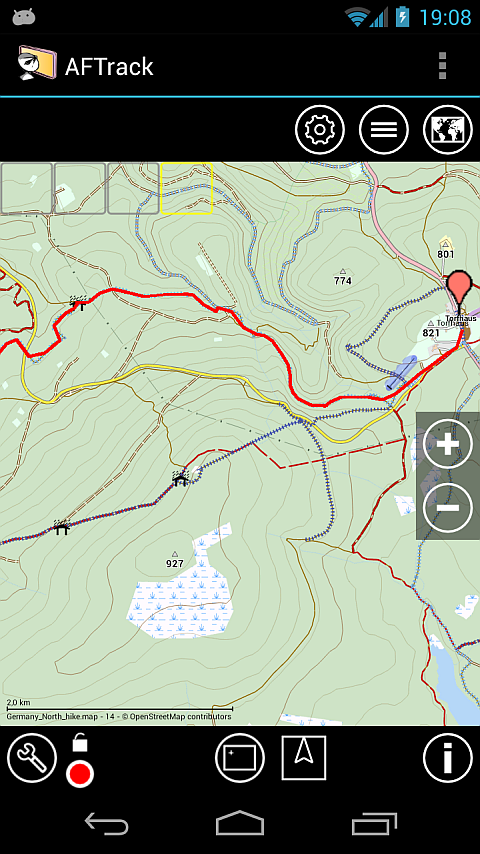
The map view can contain some additional data in a dock.
Track
Profile
Route
Way
point
Big
display
GPS
info
Button
Information
Menu with available
actions:
- start/stop track
- save a way point
- get the current address
- send a position via short message, online report or share it
- select a dock view
Center button
- position center
- map was moved
Select another center logic:
track center
route center
virtual map center
on position and way point
or on multi tracking points
way point center
Map direction toggle
- north
- gps direction
- compass direction
- user direction (use two fingers to turn)
Call the info views
Zoom in
Zoom out
Add a way point
Add a way point from
position
Add a way point collection at this position
Search for address
Bearing to add a way point
Ruler to check a distance
or design a route or an area
The points show a route
The points show an area
Generate a route for walking
Generate a route for biking
Generate a route for cars
Generate a route for boats
Generate a route for canoe
Exact move of route or
area point
Change route direction
Share your route / area
Confirm changes on a way
point
Close dialog
Switch to full screen or
back
Edit way point
Switch to Goto mode
on Wind display opens Wind definition dialog
Start bearing from here
Move way point position
Delete
Add
Route to this point
Switch to Multi selection
Merge routes
Load file
Load folder
Download map
Settings
Set visibility, overlays
and transparency
for overlays or areas, anchor alarm
Select a map, change to
track, route,
way point or area selection
Start/Stop GoTo
Stop/Start sailing
computering
Condition information
GPS is valid
GPS is invalid
Screen is locked/unlocked
for moving or
tapping on screen
Track is running
Route is running
Info views
Back to map view
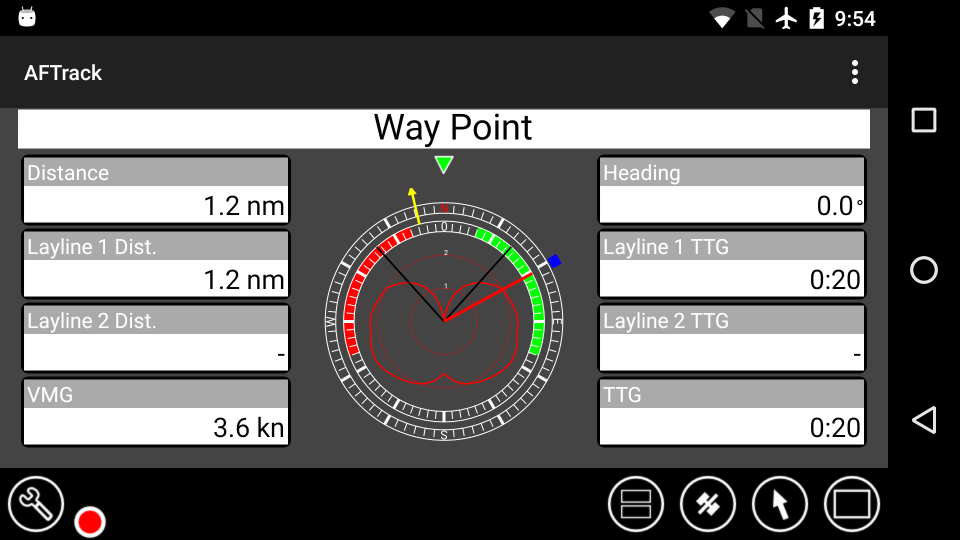
Show large cockpit
Show satellite view
Show GoTo view
Gestures
Map unlocked
swipe
moves the map
long press
add way point or search /
to full screen and return
swipe inwards from left
menu list
rotate two fingers
rotate the map (not for Navionics)
Dock
swipe left to right
next dock view
long press on large
cockpit entry
setup large cockpit, profile or map center view
long press on Mini-Dock
Select display values for Mini-Dock
- Map Center Position
- Position
- Geo Information
double tap
hide/enable dock view
Map locked
swipe left to right
next info view
Info view
swipe left / to right
next info view
long press
setup large cockpit
Lists
long press on list element
Menu for this element
Maps
Maps are used online or offline (online maps need a net connection).
Parts of an online map are stored on the sdcard to prevent the need for too much data
(or bandwidth). You may define your own entries in
the map definition file (maps.xml is found in
sdcard/data/aftrack/conf). Zoom level goes from 2 to 17.
If the selected map doesn't deliver tiles for the current area you can
define a fall back map server.
The definitions of online maps changes occasionally. Here is the latest version - maps.xml
Sample for own
changes in maps.xml:
To make OpenCycleMap working without ‘api key required‘ overlay modify the maps.xml configuration file from
      <map label="OpenCycleMap"

	  host="a.tile.thunderforest.com,b.tile.thunderforest.com,c.tile.thunderforest.com"

path="/cycle/%z%/%x%/%y%.png?apikey=0123456789abcdef0123456789abcdef"

filetype="png" minzoom>="2" maxzoom="17" cache="cycle" cr="OSM"/>
?apikey=0123456789abcdef0123456789abcdef can be obtained registering
for free to https://manage.thunderforest.com/
Offline maps have to be made in order to use them. Use tools like the MobileAtlasCreator
to get some maps for your area. Files with approximately 5000 tiles are
useful. MobileAtlasCreator, since version 1.8a7, generates files with
tiles packed in a OSZ file (just a zip file with the downloads and a
calibration info file). Place the files on your favorite directory and
load it into AFTrack at the map list.
If the tiles are written to a SQLite database
larger tile numbers are possible (there are
no tests to the limit, only statements up to 2 GB
from the net ???). Use these formats mbtiles (Mobac:
MBTiles SQLite) or sqlitedb (Mobac: Big Planet Tracks SQLite, OSMAND SQLite or RMaps SQLite)
Here are Instructions
for generating offline
maps with MobileAtlasCreator
and Maperitive
Offline maps without zoom level can be imported
from jpg, bmp or png format. They can be combined with calibration
files in map, gmi, kml, kal or jpr format. The name of calibration and
bitmap file has to be the same. Note: A bitmap is stored completely in memory, so the hardware determines,
how big can the map (size = X x Y x 4 bytes).
Maps with tfw calibration are stored as UTM coordinates without zone
information - most times. So please place the map window near to the
map before you import it.
When you are working with different maps for the same area and you
don't want to switch to an other map when zooming, please uncheck 'Auto
map' in map settings.
It is possible to use the online overlays from the OpenSeaMap project
with a standard tile server. Or download a part of OpenSeaMap for
direct use.
Here you find some available sea maps in BSB3 (Raster Navigational Charts)
format:
US area: charts.noaa.gov
New Zealand seems to publish BSB from Nov. 2013 with updates see
Nautical maps are also useable but they need a registration with the CD
key.
The best way is to copy the map files into a folder (e.g.
bsbroot/baltic_1) and scan the directory and the sub folders. When you
also copy the data folder from your chartkit to the sd-card, then
the nautical information is loaded into the database with the scan
process.
For the first installation of chart data there are two ways
1. There is already an installation on the PC Copy the charts from PC map directory (e.g. C:\Chartkit\Bsbchart to sd card /maps/ BSBroot). In addition the NV database is required (e.g. C:\Program Files (x86)\NV-Digital\filedatabase.nvdb to sd card /maps/bsbchart).
When the chartkit 'data' folder is moved to the phone, the nautical information is written to the database (e.g. C:\Chartkit\Bsbchart\data to /maps/BSBroot/data).
2. No PC installation, only CD available The charts are copied from CD (e.g.?:\nvinst\charts to sd card /maps/BSBroot). Make sure that the file installdata.txt is also copied. I recommend for each CD a subdirectory (e.g. /maps/bsbchart/baltic_1).
The copy of the nautical information is different. See the CD folder
?:\nvinst\data and copy the folder Moorings to
/maps/BSBroot/data/Moorings. also move the content of the folder
DE (or other language) to /maps/BSBroot/data.
For an update copy the charts again to the phone and over write the old
ones. Then do a new scan (found in map settings).
If there is only the update file (MBS-????-201?-??.exe) and no PC
installation please open the file with a zip manager. There you find
the folder nvinst and data for copy
On a phone also use a zip manager (eg xzip, open as archive).
NV-digital new format
AFTrack
can not organize this new database type but if you have installed the
NV charts app the charts are readable in AFTrack. Just do a scan and
use it.
These charts require additional software (chart server) available from Google Play: AV Ocharts(NG)
Once installed and running, an entry for it will appear in the chart download list, followed by the available charts.
For a new installation, I recommend starting with the S57 Vector charts from Free Nautical Charts.
This can be used with the original maps on the mapsforge download
or the maps from openandromaps but to get the full features (coast
line, contour lines) of these maps you will need to load the included
theme file. Just copy one of the xml layouts to the phone and select it
in map settings. When the xml layout contains local referenced pattern
this is also loaded (see as sample the Elevate - Mountain Hike Theme
- just copy xml and folder to phone). You also may use the Elevate 4
version with new features for the maps styling. To get the language
support you have to load a map that carries this information e.g. from openandromaps.
On the phone you may install a theme via the OruxMap or the BackCountry
Nav button. Or the manualy way.
Use the map selector on top for a quick switch
between the available maps at your position (yellow = current map, dark
grey = online map). When online maps are allowed, then the first selector switches to the online
map.
Quick install for mapsforge charts
InAFTrack visit the map list. The third button is the downloader. Choose
Mapsforge or OpenAndroMaps and select your favorite chart for download.
It will take some time - OpenAndroMaps needs an unzip process at the
end. Then you will find a new map in your map list.
OpenAndroMaps has some links for overview maps - not in mapsforge
format, but very useful.
Map Set
The 2nd button in the map list let you install all maps inside a folder.
This can be done in two ways:
- all map files build an entry in the map list
- all map files are handled like child maps and only the folder name is
visible in the map list. (Makes only sence when files are an equal type
of file. E.g. *.itf, *.map, works not with all map types)
Making your own calibration
Start with the import of a bitmap e.g. a picture you made.
Select another map to assist you on the calibration process e.g. a
satellite view for the area you want to calibrate.
In the map list you will see the map with a (nc) sign - which means no
calibration.
With a long press on the list entry you can start the calibration.
In the center you have the current xy position on your map. You can
move it to a point you need and then start with first button (plus).
This adds a calibration point. there are two ways to work with this
point.
- When you tap on the point you can edit the points coordinates or drop
the point.
- Or you select the rectangle button to see the underlaying map. Now
move to the corresponding xy position to your point and say add (plus
button). The underlaying map must be in the area of your new map.
When you have three points you can save the calibration with the ok
button calibration video
Auto map mode
If the 'auto map' mode is selected in the map settings, the program
will select the next map for the current area from the list. When there
are more than one available it's always the first.
To see the selected offline map, just deselect 'auto map'.
Note: 'auto map' always
selects the best scaling map. So if you use different map systems, it
will be better to switch off the 'auto map' function. E.g. you hold a
set of BSB sea maps (which have no zooming) and a mapsforge map (zooms
from level 2 to 22 ) in the same area. So it could be good idea to hold
both in different folders, drop the map list when you want to use a
special map system and rescan the folder for it.
For BSB nautical charts 'auto map' means, if off is selected,
that the map is shown inclusive with the border and nautical
information. Otherwise the map is clipped by the polyline and the next
larger map is shown as background.
Overlays
Overlays are displayed on top of the current map. There are four
samples for online overlays (only visible where data is
available). Define others in the conf file 'overlay.xml'.
For offline overlays use the mbtiles database format and the type 'overlay'. To
see how to generate this please see here.
Offline overlays are loaded as the other maps. They are marked with a
(o) behind the name. They are found behind the overlay button on the
main map view.
The host definition of the overlay need a refresh sometimes. Here is
the last version overlays.xml.
The transparency for overlays is adjustable.
When using mapsforge latest layouts you will also find there a layout
entry to define your favorite layout elements.Download the plain
sqlitedb version.
Application Functions
Tracking
Tracks are managed in the track list and some settings in the GPS
settings. Export it from the list by hold the list entry for a longer
time. Exports can be made to GPX, KML, OVL or IGC format. IGC format
needs some settings to be done to get your personal values out.
When depth values are available, they are stored to the gpx export.
It is also possible to collect a track from the incoming short
messages, this can work as single or multi tracking.
Colors for multi tracking are placed in the folder aftrack/conf (file
trackcolors.txt).
It is a list of hex numbers. See e.g. HTML Color Codes
each track point can be send as short message or HTTP
message< immediately after generation.
When a track is done it is possible to add the photos taken during the
track time. This generates a link to the photos and places way points
to the GPX export. On the map the photos are shown as icons, tap to see
a preview and tap on the preview to see a bigger view.
Routing
Routes are useful to show on the map or to guide you to your targets.
Unlike street routing, it only works with a line.
Corridor routing helps you to stay inside a routing area and warns you
when you move outside. Define the routing alarm distance to get the
desired size.
There are also two online and one offline (BRouter) routing feature.
Routing with BRouter
First install the BRouter from Google Play
Download the region data you need
In AFTrack select the line button - visible on a long press on the map.
You will see 2 points and a line. Define your route points and select
the route button to get a list with the options to walk, bike or drive.
Then press the search button to get a new route. You can save it by the
ok button or leave the routing dialog.
To use BRouter as offline route in waterways like rivers and canals please see - Download and more details.
Wind routing
For wind routing visit the display settings and activate the wind info
and the wind routing box.
When the wind gauge is visible you can tap on it to get a wind info,
This normally shows the weather info from the next weather station. By
select 'internal' the wind gauge shows the wind coming from NMEA data
($--MVR, $--MWD, $--MWV). There is a special plugin for the SailTimer Wind
Instrument™. It gets wind values via Bluetooth LowEnergy.
In GoTo mode the tacking lines are shown from position to the point.
This is also used to get the distance to destination. The starting line
for this is drawn in the background to remember the plan.
A corridor routing is also available to see if the course is still in a
defined range.
In route planning mode the wind lines are shown from point to point and
the resulting distance is displayed using wind information. Nevertheless
only the points are saved without wind information.
In routing mode the tacking lines are shown for the first
point.
There are small boat settings (in the wind section of
display settings). For now the best angle to the wind is saved and used
for calculations. The best speed is only used when no other speed
information is available.
It is also possible to activate polar data for the speed calculation.
In the GoTo view there is a wind gauge when wind routing is active.
Way points are organized in groups. So define your special interest
group and add some points to it. Use the import of GPS or KML formatted
files or add the point from your gps signal.
More
waypoint icons
can be placed in the AFTrack folder
sdcard/data/aftrack/icons
Format must be PNG. The icon names are synchrone to the GPX "sym" or
"groundspeak:type" tag.
E.g. Geocache 60x60 or Geocache 80x80
It is possible to insert a group of way points in one step
(collection). This option must be defined in display settings.
There is a text file in sdcard/data/aftrack/conf to define the
way points needed for the collection.
Import way points
Select a group of points and press the import button (arrow down). The
points will get the icon from the group.
GPS
By default the location settings of the system are
used. When tracks arerecorded, it is recommended to switch
off the network location.
There are a number of modes for receiving gps data:
- the internal gps
- the internal gps with NMEA data (belongs to the hardware), position
is extracted directly
- an external bluetooth gps device
- USB GPS on devices with usb host mode
- an online gps (gps daemon) with NMEA output (see catb.org/gpsd)
- a file with NMEA data
Bluetooth
1. with new provider
Install an extra Bluetooth gps provider from the store.
Start with a pairing of the phone and the gps in the bluetooth settings.
Start the new provider app and select the pairing parameters. Then the
connection can start.
AFTrack will use this position now.
2. with AFTrack
Pair the hardware as before.
Select the bluetooth option in the gps settings and then a hardware
from the device list.
NMEA sentences in use - not that some of these are only available when
AFTrack is connected over WiFi or Bluetooth with a NMEA stream:
$--RMC - recommended minimum data for gps
$--GGA - Fix information
$--GNS - Fix data
$--GSA - Overall Satellite data
$--GSV - Detailed Satellite data
$--GLL - Lat/Lon data
$--HDG - Heading
$--DBK - Depth Below Keel
$--DBS - Depth Below Surface
$--DBT - Depth below transducer
$--DPT - Depth of water (Meter and offset)
$--MWS - Wind & Sea State (wind only)
$--MWV - Wind Speed and Angle (only true wind)
$--MWD - Wind Speed and Angle (only true wind)
$--VWT - True Wind Speed and Angle
$--VWR - Relative Wind Speed and Angle
$--VDM - AIS position and info
$--TTM - Radar AIS
$--TLL - Radar AIS
$--SHR - Heading, Roll, Pitch
$--WPL - Way point
For users with GPSD interest please see these projects:
Build your own GPSD on
Raspberry Pi
Use the OpenSeaMap logger project
Or get ready to use hardware from vYacht, iKommunicate, SailTimer Mini-Server
Best results reported with NMEA to WiFi interface from Comar Systems
Or use SEANEXX AIS-Receiver (USB direct or with wifi module)
Use AFTrack as a GPSD and make your position available to a PC or
tablet without gps.
For testing connect to AFTrack with a telnet program and after
receiving the initial message send a command: ?WATCH={"enable":true,"json":true};
or ?WATCH={"enable":true,"nmea":true};
A new variante of data transfer is Signal-K. It uses a JSON format and
send updates over web socket - see signalk.org
Used JSON data parts of Signal-K for self and other vessels (AIS)
Short message
reporting can be done manually or parallel to a track.
This needs some settings first.
Incoming messages are checked for gps sentences which are processed if
found.
Since Android KitKat AFTrack can't delete an incoming sms, so you could
set it with a sms provider.
AFTrack also receive SMS reports (select GGA mode) from other AFTrack users and store the incoming
values as waypoints. For the name of the waypoint the phone book entry
is used - if not already there. It is possible to receive the GPS
tracker TK102, TK102-2, TK102 clones, DNT, ELRO, GEODOG or SmartcomGps.
For special functions, there exists a template to individualize the
sending text (template sms.txt is found in AFTrack directory conf). It
contains the all available shortcuts to fill into the message
(latitude, longitude, altitude, date, time, speed, direction and the
address for the position - if internet connected).
If you miss starting a track on incoming position reports then you can
move the history of sms to a track - you will find this on the context
menu of the way point entry.
The receive function can be used as an anchor alarm. Leave a gps
tracker (or a second AFTrack version) on board and set an anchor alarm
for its way point.
Basicrequirements for the operation GEODOG with AFTrack
GEODOG collar with software version >= G1CG20W
The
position reports are recognized
in "TrackSMS" mode
. To activate the this module
send a short message with
the following content to the collar
After the command is confirmed, the mode is activated by a 3 second press on the home button. PLEASE NOTE: GPS and the Home button indicator will flash. It hs now made a new GPS fix. Once the fix has been made successfully both lamps shown permanently.
From this point on, the collar sends positions for the last 30 seconds in a 5 block format.
The transmission mode is switched off with a short press on the home button. WARNING: if the collar runs longer than 30 seconds the display goes to "sleep mode". Before switching off do a short push on the 'on / off' button.
If no network connection is available, the tracking data are buffered and sent out later if this is possible.
Online Reporting
Online reporting means sending your position to a web site. This
can be done in a single step or automatically with the log. There is a
default setting for www.whererya.com.
It can be done automatically with the logging function or manually from the menu.
If no network connection is available, the tracking data are buffered and sent out later if this is possible.
It's also possible to share your position using other apps.
Settings
Short settomgs
- Speed - select knots, miles, kilometers per hour, meter per minute or miles per minute
- Distance format as nautical mile, mile or kilometer
- Log Mode - handles the different modes for logging
- Log Seconds - frequency for logging only used at log on second (values from 2 to 9999 seconds (30 minutes = 1800)
- Automatic selection of a map for the current area. Starts with the offline maps
- Stop the use of a net connection - use only the cached values
- Big / normal map view
GPS
GPS settings
- GPS Mode - select the input device
- GPS Mixed Mode - get external NMEA data but use internal position
- Selection of a bluetooth device (only visible when BT is enabled)
- Option to disable bluetooth after app closing
- Online GPS address and port, TCP, UDP or Signal K (works via web
socket)
- Share position (replace internal gps provider)
- Work as GPS daemon (use json or nmea data)
Plugin settings
- Start a setting dialog for a plugin (only available when a plugin is
installed)
Log Mode
- Log Mode - handles the different modes for logging
- Log Mode SMS - handle incoming sms for tracking
- Log Seconds - frequency for logging only used at log on second
(values from 2 to 9999 seconds (30 minutes = 1800)
- GPS update settings for seconds and distance
- Automatic log at program start
- Automatic export on track end
AIS settings
- use AIS (NMEA format from local server/receiver)
- AIS server and port, TCP or UDP
- this is also usable for ADS-B reports generated from the dump1090 software(connect to the port 30003)
see https://www.satsignal.eu/raspberry-pi/dump1090.html
Altitude
- Altitude - select meter or feet
- Altitude correction - the altitude correction is used or not
- Altitude correction value for a manual altitude correction. When
defined as 0 then the geo id is used,
Geo id is calculated with formulas and values from National
Geospatial-Intelligence Agency (NGA).
- Special: when a barometer sensor is found
then here are some more values:
- Use pressure for altitude
- Start altitude for pressure
- Get pressure from the nearest station for correction (needs
net connection, is refreshed every 5 minutes)
- Vario Audio - beeps for sink or climb speed
Depth
- Depth - select meter, feet or fathom to display
- Define an offset for the depth
Formats
- Position format as decimal degree, degree with minutes, degree with
minutes and seconds or UTM format
- Speed - select knots, miles, kilometers per hour, meter per minute or
miles per minute
- Distance format as nautical mile, mile or kilometer
Filter
- Smart angle, the angle for smart logging
- Use filter for altitude, speed, wind to get smoother values
- Speed pause - define the minimal speed
- Use the compass when available
- Use gps direction or calculate the values or calculate it
- show a position history - for orientation on screen
NMEA
- Write a NMEA log file
- Define a filter to select NMEA data. e.g. "$GPRMC $GPDPT" writes only these sentences to log file
Alarm
- Set the distance for the anchorage alarm in meter
Display
Way point settings
- How to display way points on screen
- Define the way point icon position
- Define the minimal zoom level to display the way points
- Show a small line to the way point when in goto mode
- Show start bearing to this goto way point
- Time format in short form
- Use way point collection, shows an extra button to insert a new group
of way points
Fill the configuration file 'wptcollection.txt' with own values
for a collection
On map only the collection is shown, when tapping on icon the
contained way points a displayed
- Load also way points on import of a route
Track settings
- Track color or 'up/down hill' color
- show only points
- Track line size
- Track restart, generate a new track when x minutes left and run track
is selected (0 = no new track)
- Path for photo scan
Route settings
- Route color or 'up/down hill' color
- show route direction
- Route line size
- Routing inside a corridor (sends alarm when you get outside)
- Alarm distance for next route point or size of corridor
- import routes without using the date
Dock settings
- opens a dialog for an optional Dock view (track - , route profile,
AIS list, speed -, wind graph)
- auto dock opens a dock view when possible
- Dock button defines a favorite short cut
- Define the values for the 'Mini Dock'
AIS settings
- opens a dialog for AIS settings
- AIS small and scaled icons, shows
the dimension of a ship
- Show a path for the moving AIS items or select the path icon
inside the AIS dialog to show only this item with path
- MMSI for own ship to extract value from display
There is also an option to define a
group of AIS items and display it in different color.
Design a text file with name 'aisgroup.txt' and place it into
the AFTrack 'conf' folder.
The content is a list of MMSI in each line
Map settings
- Label size
- Show view direction on the map
- Center tracks/routes on maps or center the start point
- Start with last map view or last position
- Position pointer format, replace the graphic 'pointer.png' in AFTrack conf folder for own designed pointer
- Wind indicator - show the true wind direction with tail feathers
- Distance rings - show rings around the position
- 10 minutes distance - show where is the next position in 10 minutes
- Radius for virtual map center (km)
Wind
- Show wind info for the map center (weather data or internal data)
- Unit for the wind speed
- Wind routing
- Layline on way point - show wind angles for the current way point
(only in GoTo mode)
- Boat settings for best tack angle, max speed on angle, use polar
values
Display settings
- Auto dock - display the dock for the 'view on map' function
- change the dock button (map, track, route, way point or area list)
- Set light always on
- Lock the screen tabbing
- Set display orientation (automatic is not working correct on all
devices)
More
- Reset the settings
- Save the settings
- Restore the settings from file
- Save Database
- Load database
Map
- Define a map folder
- Define a style folder
- Define a export folder - should be outside the app file locations to save database and settings
- Define a scan folder
- Scan the defined folder, this also looks for installed map plugins
and NV-digital charts
- Scan at start (could slow down the app start)
- Clear the cache for the online map store
- Automatic selection of a map for the current area. Starts with the
offline maps
- Define the cache directory
- Set the cache directory
- Select an online map to use as a fallback map when the selected
online map is not available in the current area
- Stop the use of a net connection - use only the cached values
- Set the position of the zoom buttons to the left side
- Load a new layout for the mapsforge maps (just place the layout xml
and the icon folder where you like)
- Define the text size on mapsforge maps
Online
GpsGate settings
These settings are for getting way point positions from a server.
Before start a GpsGate connection fill the settings for the server.
Profile settings
Different profiles can be createdn>
A can be loaded from a settings file
Example of setting files MyLiveTracker GpsGate Traccar
HTTP settings
This helps you to send positions to a server.
Fill in all the values you need to connect a server.
This can be done in user profiles. So it's easy to switch to other
server settings.
Server - the server address without the http://
Port - used port address
File - file on the server to read the values
User - the name of the identity parameter
User Mode - send your IMEI for identity or define an own
value
User Value - the value for the id
Password - parameter name for a password
Password Value - the value for the password
Use GPRMC, this sends a NMEA sentence, the next values are
not used in this case
Latitude - name of the parameter
Longitude - name of the parameter
Altitude - name of the parameter
Speed - name of the parameter (value belongs to the speed
settings kmh, knots, mi)
There is an option to connect the server parallel to the logging.
Sample settings for a GpsGate server
Host: myhost.org
Port: 80
File: /Gpsgateserver/VehicleTracker/gpsgate.aspx
User Attribute: username
User: the_user
Use IMEI: off
Password Attribute: pw
Password: the_password
Encryption: GPSGate
Latitude Attribute: latitude
Longitude Attribuet: longitude
Altitude Attribute: altitude
Speed Attribute: speed
Direction Attribute: heading
Time Attribute: time
Time Format: HHmmss
Short Message - only with Plugin
Storage settings
- read a missed sms from inbox
- SMS storage - predefined text to send
- Show commands in list
Logging settings
- Automatic send with log
- Select a string to send
- Define the receiving number
- Number to send
- Center on sms position
- Play sound on sms income
IGC
The values to fill the IGC log
- Name
- Glider type
- Glider id
- Competition
- Competition class
Plugins for AFTrack
Plugins
are program parts of AFTrack that comes in an extra app container. This
saves space for the main app and not all users will need it. They are
not visible in a app launcher but in system settings dialog for apps.
Video how to design a route Video how to sail with
AFTrack to a way point Video how to plan route
with AFTrack and wind information Video how to calibrate a
bitmap as map Video how to plan a route with
BRouter Pdf how to work with wind Pdf how to work with way
points Pdf how to use some special functions (anchor alarm/geo fence alarm, NV digital charts, geo tracker, wind info Html how to use
AFTrack when sailing Html how to
install an own GPSD on RasPi Html how to
install an ADSB service on RasPi Html how to
install Signal-K on RasPi Html generate own charts
Versions
AFTrack Standard Version
All functions as described above.
Requirements
Minimum Android version: 5.0 or higher
Android Market and/or Google account: -
Permissions:
Location coarse location, fine location, mock location
Modify external storage
Device Id for the use of protected maps or sending as an identifier (online settings)
Access network state, wifi state
Access internet
Read system log files
Control vibrator
Help on Problems
If the app doesn't start, do a long press on the icon. You will find an extra menu with the entries:
- Start without setting, this drops old settings before start.
- Write an error log and send it
Known Problems
Since verson M on some Samsung devices the gps logging is broken when
in Doze mode. Visit system settings battery and select battery
optimization. Now select AFTrack and set it to not opimized. Sometimes
only a complete turn off for battery saving helps.
Support different languages
If you like and have the time, you could help with the translation into other languages.
 AFTrack - GPS Tracking
 next
next